---
description: General guidelines on how to use Phoenix's prompt playground
---
# Using the Playground
## Setup
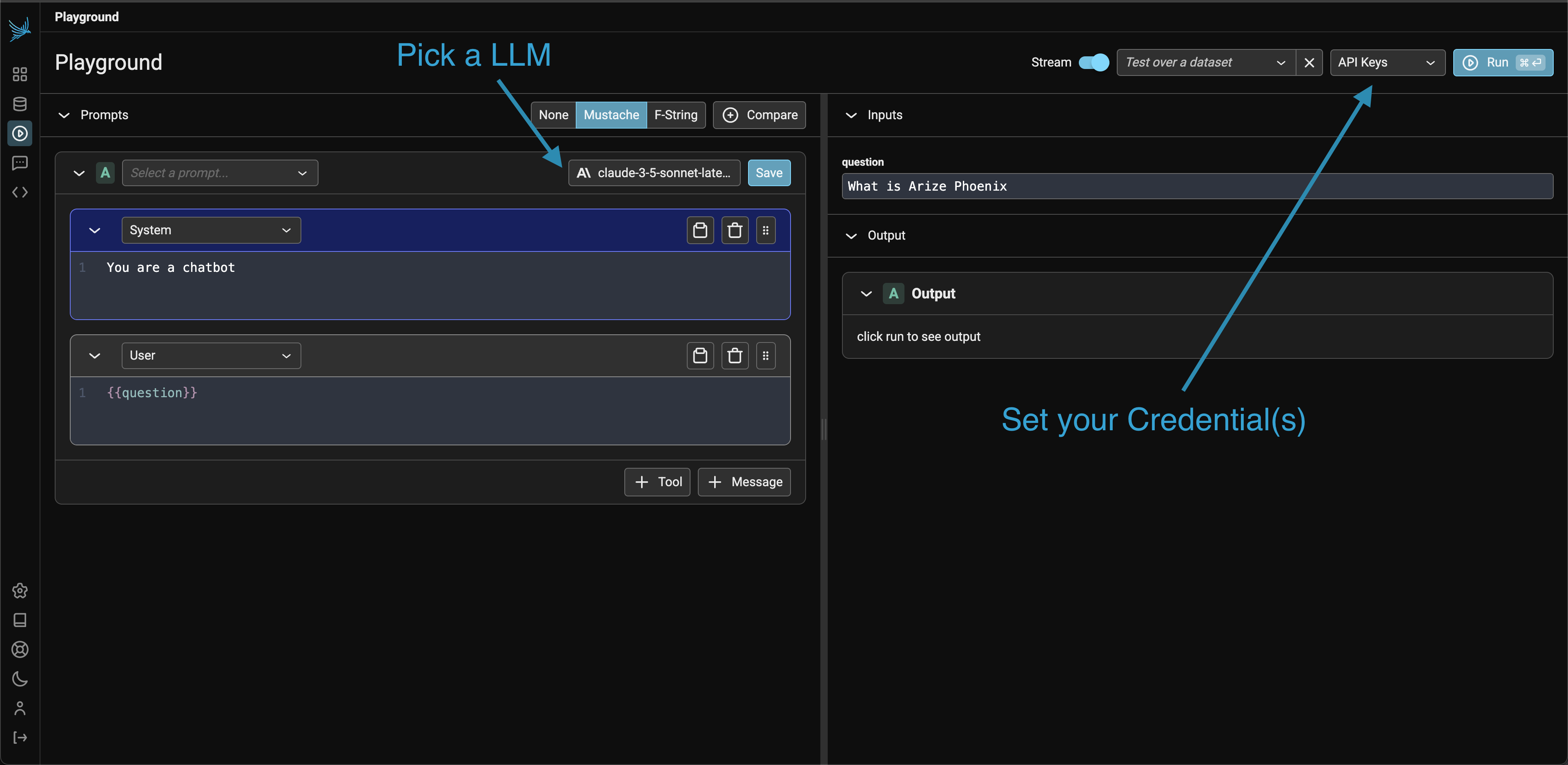
To first get started, you will first [configure-ai-providers.md](configure-ai-providers.md "mention"). In the playground view, create a valid prompt for the LLM and click Run on the top right (or the `mod + enter`)
If successful you should see the LLM output stream out in the **Output** section of the UI.
Pick an LLM and setup the API Key for that provider to get started
## Prompt Editor
The prompt editor (typically on the left side of the screen) is where you define the [prompt template](../concepts-prompts.md#prompt-templates). You select the template language (**mustache** or **f-string**) on the toolbar. Whenever you type a variable placeholder in the prompt (say {**{question\}}** for mustache), the variable to fill will show up in the **inputs** section. Input variables must either be filled in by hand or can be filled in via a dataset (where each row has key / value pairs for the input).
## Playground Traces
All invocations of an LLM via the playground is recorded for analysis, annotations, evaluations, and dataset curation.
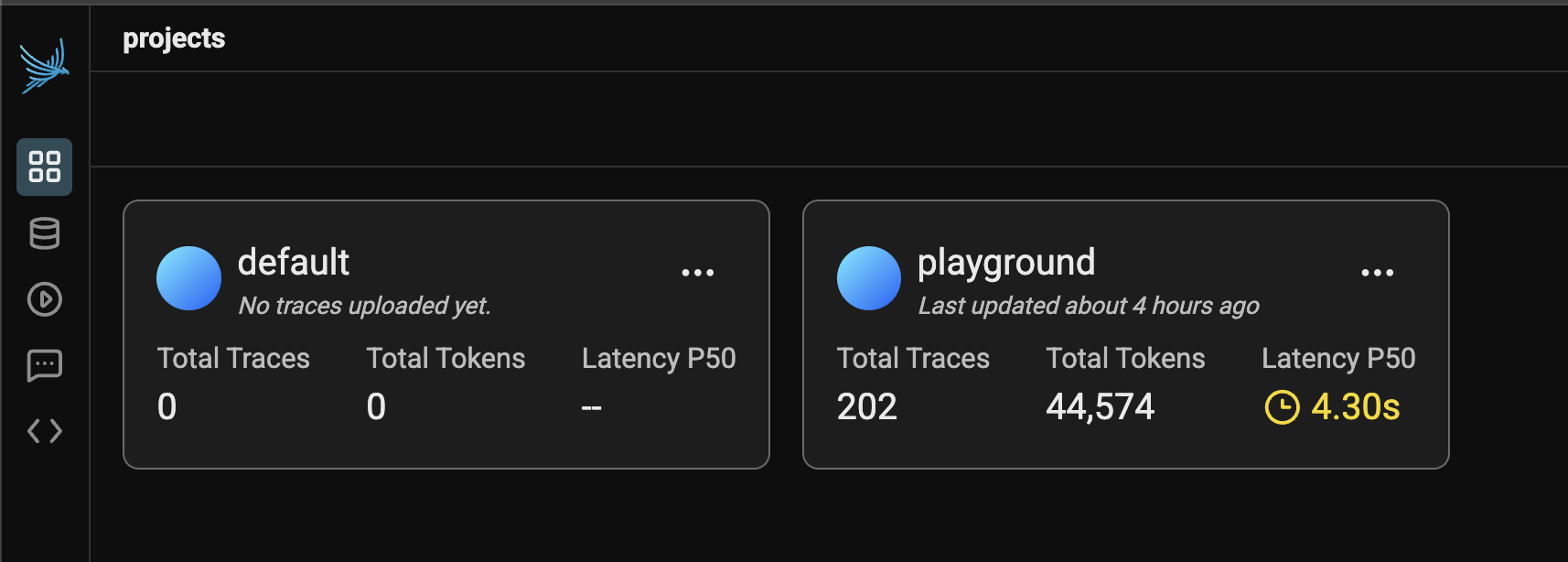
If you simply run an LLM in the playground using the free form inputs (e.g. not using a dataset), Your spans will be recorded in a project aptly titled "playground".\
All free form playground runs are recorded under the playground project
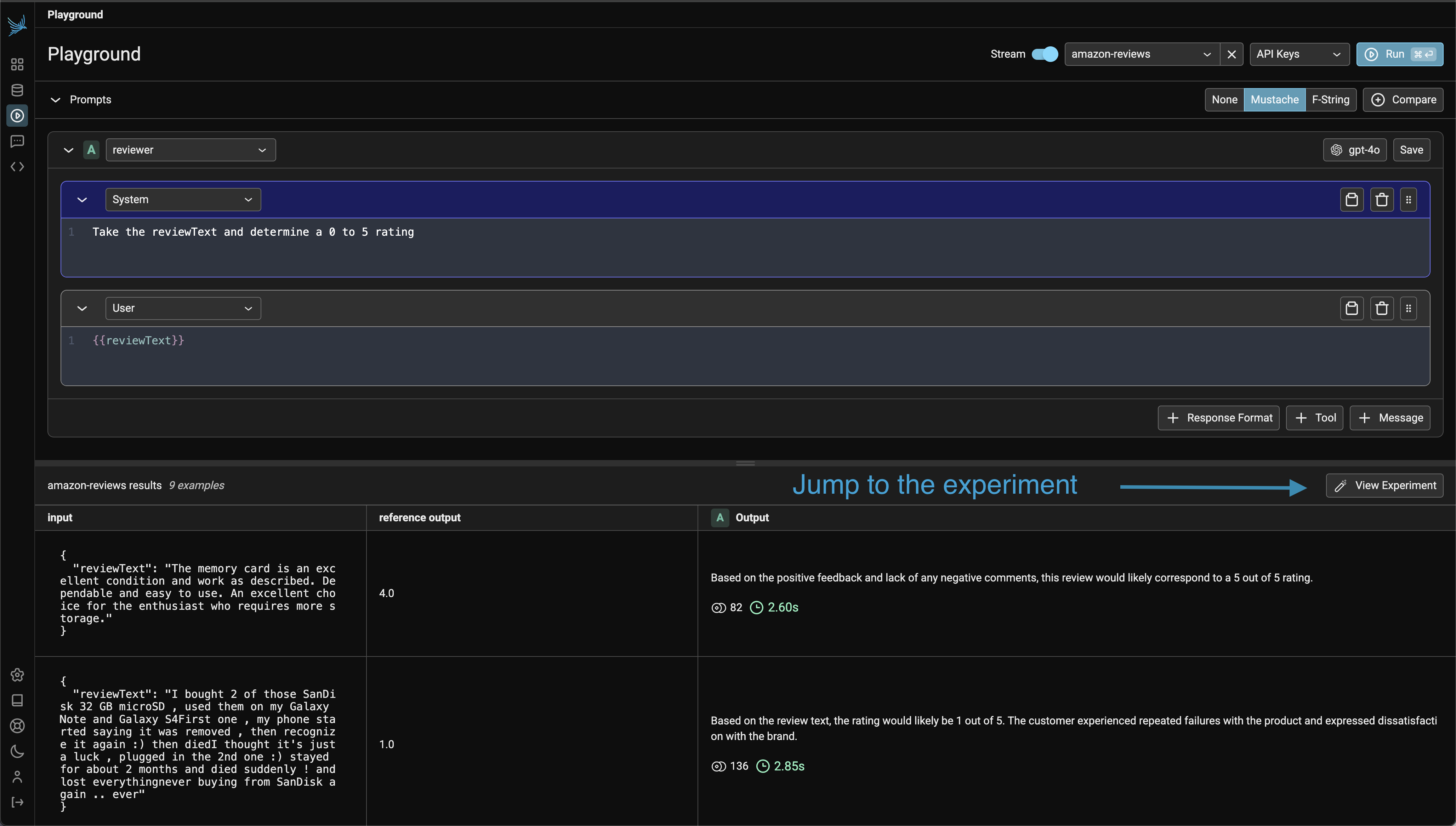
If however you run a prompt over dataset examples, the outputs and spans from your playground runs will be captured as an experiment. Each experiment will be named according to the prompt you ran the experiment over.
If you run over a dataset, the output and traces is tracked as a dataset experiment